


How to Organize Your Massive Channel List on IPTV Service
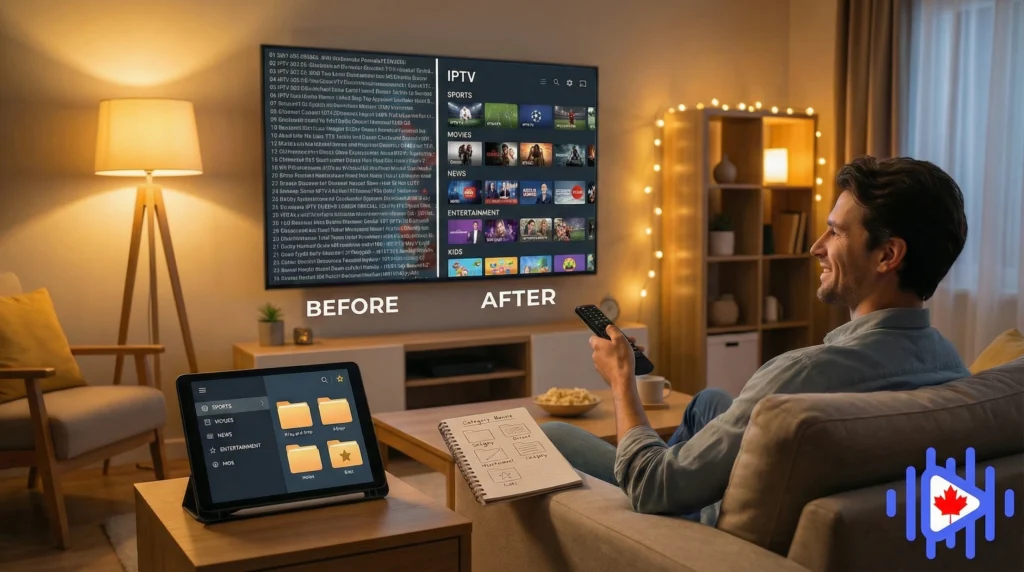
You subscribed, loaded your playlist, and realized you now have 15,000 channels and absolutely no idea where anything is. This guide fixes that. Favorites, groups, filters, and app-specific tools that actually work.
The moment you load a full IPTV playlist for the first time, most people stare at the same thing: an alphabetically ordered wall of thousands of channels from dozens of countries, sports leagues, and language groups they have no interest in, and the fifteen channels they actually care about buried somewhere in the middle of all of it.
This is not a design flaw. Comprehensive channel lists are part of what separates a good IPTV IPTV Canada service from a limited one. But a raw IPTV playlist with no organization is like having access to a library with no cataloguing system. Technically impressive, practically useless. The IPTV channels you want to find are in there. You just need a system to surface them quickly.
The good news is that most serious IPTV apps have solid IPTV organization tools built in. Favorites lists, custom groups, search filters, hidden categories, and EPG-linked views all exist specifically for this problem. The bad news is that most people never touch those settings because no one explains them clearly.
This guide does exactly that. We cover the tools available in the main apps IPTV box and mobile users across Canada use, walk through a practical organization strategy that takes under an hour to set up, and explain how to keep things clean after a provider updates their playlist. Start here, and by the end you will have a channel list that actually works the way you watch TV.
If you are not yet sure what IPTV is or how it works at a technical level, the complete IPTV guide for 2026 gives you the full context before diving into organizational tools. Channel list management makes more sense once you understand how playlists and streams work.
Why IPTV Channel Lists Get So Massive
Most IPTV subscriptions include anywhere from 5,000 to 25,000 channels. That number sounds absurd until you understand what is actually in a typical playlist. A single sports channel like TSN might appear four or five times at different resolutions: TSN HD, TSN FHD, TSN 4K, TSN backup stream. Multiply that across every regional feed, language variant, and quality tier, and numbers balloon fast.
Beyond duplicates, comprehensive playlists include content targeted at viewers across multiple continents. A service good for Canadian viewers will also carry Arabic news channels, Indian sports feeds, Latin American telenovela networks, and European football coverage. You probably want none of that. But your playlist has it because other subscribers do, and your provider packages everything into one list.
One channel offered at SD, HD, FHD, and 4K counts as four entries. A provider with 2,000 channels and four quality tiers effectively has 8,000 playlist entries.
A good IPTV provider serves subscribers from multiple countries. The playlist reflects that, pulling in content that is simply irrelevant for your viewing habits.
Responsible providers include primary and backup streams for the same channel. Both appear in your list, so the count doubles even though you are watching the same content.
Pay-per-view and event-specific channels often stay in the playlist permanently even after the event has ended. Dead channels inflate list size with no benefit.
Understanding why the list is large helps you organize it more effectively. You are not trying to delete channels. You are trying to create a personal navigation layer on top of a complete IPTV provider catalog, so that the 40 channels you watch regularly are always two button presses away, and the other 14,960 exist quietly in the background when you occasionally need them.
Before You Start Organizing
Jumping straight into building favorites without a bit of preparation usually means rebuilding everything from scratch a week later. A few quick steps before you start save a lot of repeated work.
Check your app supports the features you need
Not all IPTV apps have equal IPTV organization tools. TiviMate has the most comprehensive favorites and group management of any app currently available for Android devices. GSE Smart IPTV and IPTV Smarters Pro also support favorites and group filtering but with fewer customization options. Before spending an hour building a favorites list, confirm your app actually supports persistent favorites that survive a playlist refresh. Some budget apps reset your favorites every time the playlist updates.
Clear your app cache first
This sounds counterintuitive, but organizing a channel list on top of corrupted cache data can cause your categories and favorites to fail to load correctly after saving. Clearing the IPTV app cache before starting gives you a clean slate. Our guide on how to clear IPTV cache on any device covers this for all major platforms in a few steps.
Write down the channels you actually watch
This is genuinely worth doing. Grab your phone and spend two minutes listing every channel you watched in the past week. Most people end up with a list of 15 to 25 channels. That list becomes your favorites tier. Everything else is secondary. Without a concrete list, you end up browsing through thousands of channels during setup, which takes four times as long and produces a less accurate result.
Ask your provider how often they update the M3U playlist. If your provider pushes updates frequently, any organization done inside the app that is tied to channel position rather than channel name may get disrupted. Apps like TiviMate match favorites by channel name across refreshes, which is more stable than position-based matching.
Building a Favorites List That Actually Works
The favorites list is the highest-leverage IPTV organization tool available in any IPTV app. When it is set up correctly, you never need to scroll through the full channel list again. You open the app, go straight to favorites, and everything you watch regularly is right there.
The right way to build favorites
Start with channels you watch at least once a week. Not channels you might watch. Not channels that seem useful. Channels you actually tuned into in the past seven days. Keep this tier small, ideally under 30 channels. A favorites list with 200 channels is not a favorites list, it is a slightly shorter version of the full list.
Do not browse the full list to find channels for your favorites. Every major IPTV app has a search function. Type the channel name, open it once to confirm the stream works, then add it to favorites from the channel options menu. This takes about 10 seconds per channel versus 3 minutes of scrolling.
When you find a channel that appears multiple times at different resolutions, add the HD or FHD version to favorites and ignore the rest. Adding all quality variants defeats the purpose. If the HD version ever has issues, you can manually switch to the backup from the full list in that moment.
Most apps let you reorder your favorites list manually. Put the channels you watch daily at the top. Sports channels you only use on weekends go lower. This way the remote presses you need to reach your most-watched content are minimal, which matters more than it sounds when you are doing it multiple times a day.
Add channels in batches of five or ten, then test each one plays before moving on. It is much easier to remove a dead channel during setup than to discover it later when you want to watch something. A ten-second test per channel during setup saves real frustration later.
Using Groups and Categories Effectively
IPTV favorites handle your daily channels. Groups and categories handle everything else. When your provider delivers a playlist, channels come pre-organized into groups, things like “CA: Sports,” “CA: News,” “FR: General,” “UK: Entertainment,” and so on. Most apps display these groups as tabs or filters you can navigate between. This is useful as a secondary navigation layer, but the default IPTV grouping is rarely ideal for your personal use.
Hiding groups you never use
This is the fastest way to make a massive playlist manageable. If you never watch Spanish, Arabic, or Pakistani channels, hide those entire group categories. They will still exist in the full list if you ever need them, but they will not clutter your navigation. In TiviMate, you can do this under Settings > Groups. In Smarters Pro, it is under the Manage Streams or Group Filter section depending on your version.
Creating custom groups
Beyond hiding, some apps let you create custom groups by pulling channels from different provider categories into a single view you define. TiviMate handles this particularly well. You could create a group called “Canadian Sports” that pulls TSN, Sportsnet, RDS, and TVA Sports out of their default categories into one place. This is especially useful for households watching content across language groups, where the provider’s default organization splits related channels into separate category trees.
A clean channel structure for most Canadian viewers: one Favorites group at the top for daily channels, one Canadian News group, one Sports group (pulling all sports channels regardless of provider category), one Movies and Series group for VOD channels, and everything else collapsed into an “Other” view you rarely access. Four active IPTV groups is easier to navigate than forty.
The French-language consideration
For Quebec viewers and bilingual households, the default provider grouping often splits French and English content in ways that do not reflect how people actually watch. TVA and CTV are both news channels that you might want in the same group even though one sits under “FR:” and the other under “CA:”. Custom groups solve this by letting you define categories that match your actual watching habits rather than the provider’s organizational logic.
App-by-App Organization Guide
The IPTV tools available to you depend heavily on which app you are using. Here is an honest assessment of what each major IPTV app actually offers for channel organization, in practical terms rather than feature-list marketing language. The right IPTV app for your device can make channel organization genuinely fast.
Genuinely the most capable app for channel management currently available for Android-based devices. It supports multiple favorites lists (you can have one for sports, one for kids, one for daily channels), full custom group creation, advanced filtering, channel sorting by name or number, and favorites that persist correctly across playlist refreshes because it matches by channel name. The interface is also the cleanest of the major options. If you are on an Android box or Fire Stick and organization matters to you, TiviMate is worth the modest cost. The full comparison against Smarters is in our TiviMate vs IPTV Smarters breakdown.
Smarters Pro supports favorites and category filtering but gives you considerably less control over group management than TiviMate. You can hide categories and build a favorites list, but creating fully custom cross-category groups is not possible in the same way. The interface can also behave unpredictably when playlists contain a very large number of channels. If Smarters is your current app and you are running into issues during channel reorganization, the Smarters Pro issue fix guide covers the most common problems including favorites not saving and category filters resetting.
GSE handles large playlists well and offers favorites, group filtering, and a decent search function. It works on both iOS and Android, which makes it useful for households where people watch on different device types. Custom group creation is more limited than TiviMate, but favorites management is reliable and persists across updates. A good choice if you are primarily on iPhone or iPad and want consistent cross-device organization.
XCIPTV has improved its channel management features considerably in recent versions. It supports favorites, category-based navigation, and a search function that handles large playlists without the sluggishness some apps show at high channel counts. If you are already using XCIPTV, the XCIPTV configuration guide covers how to set up playlist management and organize your channel view from the initial setup screen.
Kodi’s organization capabilities depend almost entirely on how well your M3U playlist is structured. Kodi reads group tags from the playlist file itself rather than letting you create groups inside the app. If your provider structures their playlist well, Kodi’s group and favorites system works reasonably well. If the playlist is poorly tagged, you are stuck with a flat list. The tradeoff for complete control is more initial setup effort and an interface that takes some getting used to.
If you are not yet settled on an app, the best IPTV apps for Canada in 2026 gives you a full comparison including which apps perform best specifically on slower connections, which matters if your internet is inconsistent.
The EPG and TV Guide Connection
Organizing your channel list without configuring the EPG is like filing documents without labels. You get things in the right folder, but when you open the folder you still have no idea what is inside. The IPTV EPG is what turns a channel entry from a name into something you can browse by content, see what is on now, and decide whether it is worth switching to.
The EPG also helps with organization in a less obvious way. When your IPTV program guide is properly loaded, you can browse through your favorites or groups and see current programming for every channel at a glance without having to open each one. This alone changes how you navigate a large channel list. Instead of guessing what is on TSN right now and clicking in to check, you can see it from the IPTV guide view and make a decision in two seconds.
When EPG data does not match your channels
One of the most common frustrations after organizing a channel list is finding that some channels show “no information” or display program data from the wrong channel. This happens when the EPG source your app is using does not have a matching entry for a specific channel name, or when the channel name in your playlist differs slightly from what the EPG database uses. Our guide on fixing missing EPG data in IPTV Canada covers the diagnostic steps and specific fixes for this, including how to manually map EPG sources to channel entries in apps that support it.
According to Digital Trends, EPG data quality is one of the most underrated factors in live TV usability. A full technical explanation of how EPG works, how it connects to your playlist, and what the different EPG delivery formats mean in practice is in our IPTV EPG guide for 2026. Worth reading before troubleshooting, because a lot of EPG problems that look like organization issues are actually configuration issues at the app level.
In TiviMate specifically, your favorites list displays EPG data for all channels simultaneously in the guide view. This means a well-built favorites list combined with correct EPG configuration gives you a personalized TV guide showing current and upcoming programming for only the channels you actually care about. It is much closer to a proper cable guide experience than most people expect from an IPTV setup.
Advanced Organization Techniques
If you have covered the basics and want to push further, these techniques take a few more minutes to set up but produce a noticeably cleaner navigation experience.
Multiple favorites lists by viewing context
TiviMate supports multiple separate IPTV favorites groups. This is more useful than it sounds. One practical IPTV setup: a “Daily” favorites with your news, general entertainment, and most-used channels. A “Sports” favorites with every sports channel you use. A “Kids” favorites if there are children in the house. Each gets its own tab in the guide interface. You switch between contexts rather than scrolling through a single long list that mixes everything together.
Most of the time you are in the Daily group. When a game is on, you switch to Sports. This separation is especially useful when other household members have different channel preferences and you want to avoid building one compromised favorites list that half-satisfies everyone.
Sorting and filtering by number
Most apps let you assign channel numbers to IPTV favorites entries. If your mental model of TV is number-based (the way it is for people who grew up with cable), assigning familiar numbers to channels makes navigation faster. You can assign CTV the number your cable provider used for it, so muscle memory from years of cable use transfers directly. Not everyone benefits from this, but for people who navigate cable by number rather than name, it is worth the five minutes of setup.
Search as a navigation tool, not just a setup tool
Once your favorites are built, search still has daily use as a supplementary tool. When you want a channel you have not added to favorites, using search to get there is much faster than scrolling through groups. Every major IPTV app has a search function accessible from the main IPTV interface. Training yourself to go search first, then browse if search fails, cuts navigation time considerably on large playlists.
Managing VOD alongside live channels
If your IPTV subscription includes video on demand content, that catalog can be as overwhelming as the live channel list. Most apps separate VOD from live channels at the navigation level, but within the VOD section the same principles apply: favorites or watchlists for series you are following, category filters to narrow by genre, and search as your primary discovery tool rather than browsing.
| Technique | Time to set up | App support | Daily impact |
|---|---|---|---|
| Basic favorites list | 20 to 30 min | All apps | Very high |
| Hiding unused groups | 5 to 10 min | Most apps | Medium |
| Custom cross-category groups | 15 to 25 min | TiviMate mainly | High |
| Multiple favorites contexts | 30 to 45 min | TiviMate mainly | Very high |
| Manual channel numbering | 20 to 40 min | TiviMate, GSE | Medium |
| EPG channel mapping | 15 to 30 min | TiviMate, Smarters | High |
Keeping Your Channel List Tidy Over Time
IPTV organization is not a one-time event. Providers update their IPTV playlists. Channels move between groups. Some channels disappear entirely. New channels appear. Your organization system needs to survive these updates without forcing you to rebuild from scratch every time.
How playlist updates affect your organization
When your IPTV app refreshes its playlist from the provider, it overwrites the raw channel data. What happens to your IPTV favorites and custom IPTV groups depends entirely on how your app handles this. Apps that store favorites by channel name (TiviMate, most versions of GSE Smart IPTV) can match existing favorites to updated channel entries as long as the channel name has not changed. Apps that store favorites by playlist position lose them on every refresh if any channels have been added or removed above that position in the list.
If you are using an app that does not handle refresh well, one practical workaround is to export your favorites list to a file before any manual refresh, then import it afterward. TiviMate supports this. Check whether your IPTV app has backup and restore functionality in its settings before you need it.
A monthly maintenance routine
- Open your favorites list and scroll through it. Any IPTV channel showing an error or that consistently fails to load should be removed and, if possible, replaced with a working alternative from the full list.
- Check your group filters. If you notice channels from categories you hid have re-appeared in your navigation, your provider may have changed category names in the playlist. Update your hidden groups to match the new naming.
- Force a full playlist refresh and compare your favorites count before and after. A significant drop in favorites usually means a provider changed channel names, and some of your saved favorites can no longer find their match in the updated list.
- Check your EPG coverage. After a playlist update, some channels that previously had EPG data may show as empty if the provider changed how those channels are named. Cross-reference with the guide on fixing missing EPG if needed.
- Clear the app cache if navigation or channel loading has become slower since the last refresh. Cache bloat after large playlist updates is a common cause of sluggish performance that looks like a stream quality issue but is not. The cache clearing guide covers this for every major device type.
Monthly maintenance takes about ten minutes once you have a system in place. The most common reason people end up rebuilding their entire channel organization from scratch is that they skip maintenance for three months, the playlist changes significantly in that time, and things have drifted enough that fixing incrementally seems harder than starting over. It is not. Incremental fixes are almost always faster.
Common Problems When Reorganizing
Channel organization work surfaces some problems that people assume are unrelated. Here are the issues that come up most often and what they actually indicate.
Favorites disappear after playlist refresh
This is the most common IPTV complaint. If your favorites vanish after a refresh, your app is matching by position rather than by name, and the playlist structure changed enough that positions shifted. Solution: switch to an app that matches by name (TiviMate is the most reliable for this), or manually export your favorites list before refreshing and import it after. There is no fix within apps that use position-based matching.
Custom groups show wrong channels after refresh
If you built custom groups using channels that have since been renamed in the provider playlist, those channels will not automatically follow into the new group. You will need to search for the renamed channels and re-add them. This is an argument for using provider-native group names when possible rather than building entirely custom groups, since provider group names typically survive updates better than individual channel names.
App slows down significantly after organizing a large list
Adding hundreds of favorites across multiple groups can cause some apps to load slowly, particularly on older devices or budget Android boxes with limited RAM. The fix is usually clearing the app cache, reducing the number of group views being rendered simultaneously, and in some cases reducing the EPG lookahead window (how many hours of EPG data the app loads at once). The IPTV settings guide for different connection types covers performance settings that also affect organizational feature performance.
EPG data loads but shows the wrong program for a channel
This is an EPG mapping problem, not an organization problem, but it surfaces during channel organization because you are looking at more channels at once. The fix requires manually mapping the correct IPTV EPG source entry to the channel in your app’s settings. Full instructions are in the EPG guide under the channel mapping section.
Search returns too many results to be useful
When you search for a channel name in a 15,000-entry IPTV playlist, you might get 60 results including every regional feed, quality tier, and backup stream. Most apps let you filter search results by category, which narrows this considerably. In TiviMate, you can also configure search to look only within your active groups rather than the full playlist. This setting alone makes search genuinely useful on large playlists instead of adding to the confusion.
If your playlist is missing entire channel categories you expect to see, or if the channel naming is so inconsistent that organization tools cannot function reliably, that is a provider-side problem rather than an app problem. A well-structured playlist from a good provider will have consistent naming, sensible group tags, and accurate EPG IDs embedded. These things make every organization tool work better and require less manual correction from you.
According to research published by Cord Cutters News, poor channel organization is one of the top reasons IPTV users abandon otherwise functional setups. The channels work, but the friction of navigating them daily makes the experience feel worse than it actually is. Organization is not a cosmetic concern. It directly affects whether people stick with a service or give up on it.
Your Channel List Does Not Have to Be a Problem
A 15,000-channel IPTV playlist sounds like a logistical nightmare until you spend thirty minutes building a proper favorites structure and hiding the IPTV categories you never use. After that, your day-to-day IPTV experience shrinks to a navigation layer of 20 to 30 channels that covers everything you actually watch, with the full catalog still accessible in two or three more clicks when you want to explore.
The investment is real but small. Most IPTV users who do this properly once never think about channel organization again until a major playlist update requires a minor maintenance pass. That is the goal: an IPTV setup that works in the background rather than demanding attention every time you sit down to watch.
If you are still choosing an app, TiviMate handles the organizational side better than any other option currently available for Android devices. The full IPTV comparison in our TiviMate vs Smarters guide gives you the specific differences. If your EPG is not loading correctly after organizing, the EPG guide has the fix. And if you are looking for a provider whose playlist is organized well enough to make all of this easier, a properly structured playlist from a good IPTV service makes every tool described in this guide work with less manual correction from you.
